Copyright (c) 1997 - 2002; Microburst Technologies, Inc. All Rights Reserved.
1. Introduction uShopTM is an online shopping system designed to make online shopping the way it should be...easy and intuitive for both the shopper and the web page designer! uShopTM consists of a series of Java Applets and JavaScripts that together make a flexible frontend to a powerful Perl CGI script. These Java Applets and JavaScripts have been designed to plug easily onto any web page - thus giving you almost total creative freedom when designing your web pages. No longer do you have to hassle with complex forms and complicated CGI scripts. No longer are you limited to particular page layouts and obscure page navigation schemes. With uShopTM, the only limitation is your imagination! 2. Features Features of uShopTM include:
3. System Requirements The system requirements of uShopTM are as follows: 1. System Requirements of the Store Owner/Web Developer
4. Steps In Creating An Online Store With uShopTM Creation of an online store with uShopTM consists of the following steps:
5. Setting Up Directory Structure Because uShopTM is Java-based and because various browsers on various operating systems handle caching Java Applets differently, there is a specific directory structure that should be used in order to maximize browser compatibility. This recommended directory structure is based on years of experience in dealing with Java and the various browser differences and is illustrated in the figure below. 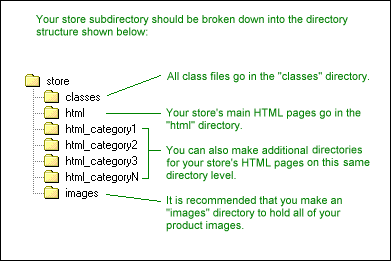
Figure 5.1 Recommended Directory Structure Note: You can make as many "html" directories for your store as you like, however, it is important that they are all on the same directory level. That is, put all "html" directories on the same directory level as your "classes" directory. So to sum up what you need to do to create the necessary directory structure for your store, on your development computer:
6. Setting Up Store Pages/Applets Upon setting up your directory structure on your local computer, you can begin creating your store's product pages. This process simply involves using any text or HTML editor to create your product pages. The pages should be standard HTML pages (located in any of your "html" directories) that describe your products, display images of your products, and may utilize any additional multimedia capabilities/plug-ins that are supported by the browsers you intend to support. Again because of uShop's flexibility, these pages can have any layout/style that you want. In addition to putting product descriptions on your store's HTML pages, you will also need to have a way to allow customers to select items that they want to purchase and add them to their virtual shopping cart. This is done via the use of uShop's Input Applets and Input JavaScripts. The uShopTM Input Applets and JavaScripts are described in the following two sections. 6.1 Input Applets uShopTM comes with a variety of Input Applets that can be used to "Add" or "Input" items into the shopping cart. These applets have been designed to plug easily onto any web page, thus giving you almost total creative freedom when designing your web pages. That is, you can put any product descriptions, images and/or sounds on your pages - using regular HTML - and then add any of the various uShopTM Input Applets onto the pages as the means for adding the items to the shopping cart. The uShopTM applets are added to your HTML pages via the standard <APPLET> HTML tags and configured via some easy-to-use parameters. The figure below shows an example applet and the HTML used to create the applet. 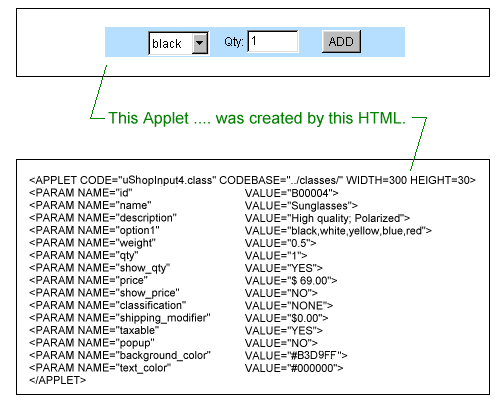
Figure 6.1.1 Example Applet and HTML Note: If you have never used Java applets before and/or would like to see how to utilize the uShopTM applets, it is recommended that you try the uShopTM Tutorial. Need To Create Your Own Custom Input Applets? In order to further increase uShop's flexibility, we have released the Java API for the uShopTM Input Applets. This allows you to create your own custom Input Applets. See the uShopTM Programmer's Guide for more information about creating your own custom Input Applets. An Important Note About The "codebase" Parameter When adding the uShopTM applets to your store pages, you must use the special "codebase" parameter to specify where the Java "class" files are located. As was shown in Figure 6.1.1 above, the "codebase" parameter is specified on the same line as the <APPLET> tag. The value of this parameter should be the relative path to your "classes" directory and must be set to the exact same value for all of your uShopTM applets. So in other words, just remember to set the codebase of ALL of your applets to codebase="../classes/". Note: For more information about the codebase setting, see our codebase reference page at: http://www.uburst.com/uShop/codebase.html 6.2 JavaScripts uShopTM has also provided a special JavaScript Interface Applet and an "Add Product" API (Application Program Interface) that allows you to create your own JavaScripts to interface with uShopTM. Like the uShopTM Input Applets, the JavaScripts can plug onto any web page. Observe the example in the figure below. 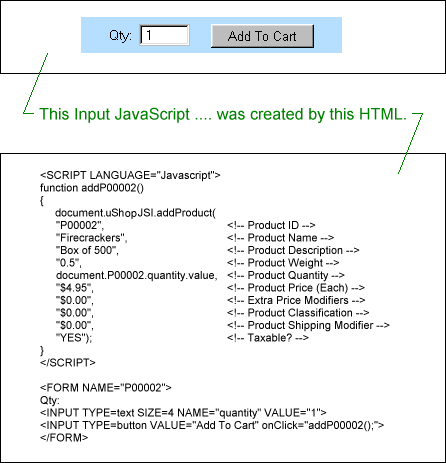
Figure 6.2.1 Example Input JavaScript One Important Note to remember about using any of uShop's JavaScript functions/API, is that you must add the special uShopTM JavaScript Interface Applet to any page that will be using the JavaScript API. This uShopJSI applet is a special JavaScript Interface Applet that provides the means by which JavaScripts can call Java functions. Only one instance of this applet needs to be added to each page that will be using the uShopTM JavaScript API, And typically, the applet is added at the very bottom of the page (just before the closing </BODY> tag) with a WIDTH of 2 and HEIGHT of 2 ... to make it virtually invisible. The HTML to add this applet to your pages is shown in the figure below. 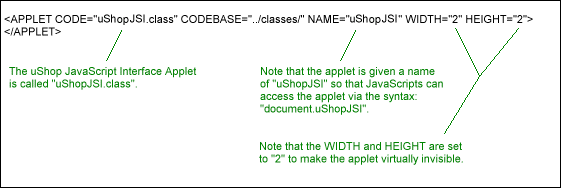
Figure 6.2.2 Example HTML For The JavaScript Interface Applet 7. Special Applets In addition to the various Input Applets that were described in the previous section, uShopTM also provides a variety of other applets that can be used for displaying the contents of the shopping cart, configuring general store preferences, performing searches, offering discounts, and initiating the order process. A brief overview of these applets is provided in the following sections. For a complete description of all of uShop's applets, see the uShopTM Applet Reference. 7.1 Shopping Cart Applets The uShopCart applets provide the means by which you can allow customers to view/modify the current contents of their virtual shopping cart. uShopTM currently has three different "Cart" applets that provide options ranging from showing the full details of each item that has been added to the shopping cart - down to an option to just show the current quantity, subtotal, or total of items in the shopping cart. When setting up your online store, it is recommended that you create at least one HTML page that can be used as a "View Cart" page. On this page, you should put a large version of the uShopCart1 applet so that customers can go to this page at anytime to view the full details of the items currently in his/her virtual shopping cart. If using a "FRAMES" layout for your online store, you may also want to put a smaller version of the cart - perhaps the uShopCart2 applet - in one of the frames. This way, customers can immediately see items get added to their shopping cart when they press the product's "Add" button. See the uShopTM Demonstration Store for a working example of a main "View Cart" page and a working example of a small cart applet in a navigation frame. To find out more about the uShopCart applets and their parameters, see the uShopTM Applet Reference. 7.1.1 Shopping Cart Template In addition to the shopping cart applets described above, there is another shopping cart page that gets displayed once the customer chooses to begin the order process. This additional shopping cart page basically consists of an HTML formatted display of the shopping cart and some instructions to go back and make changes to the order or to continue with the order process. In order to make this page blend with the rest of your store's pages/style, we made a template for this page that you can customize. The template page is called "template_cart.html" and is located in the "classes" directory that was created when you installed/unzipped uShopTM on your local development computer. Feel free to modify the "template_cart.html" file to satisfy your preferences. To assist, a table describing the 3 available keywords has been provided below.
Table 7.1.1 Shopping Cart Template Keywords 7.2 Initialize Applet The uShopInitialize applet provides the means by which you can change some of the default store settings such as the codebase, the currency symbol, some of the language specific-settings, and whether or not to display the Euro Totals. If using this applet, remember that it's settings will not take effect until the visitor has viewed a page with this initialization applet on it. For this reason, it should be placed on one of your store's main entrance pages so that the settings will be applied as soon as possible. If using a "FRAMES" layout for your store, then you can also just put this applet in one of your smaller navigation frames...also ensuring that the applet will be viewed and the settings take effect. To find out more about the parameters of the uShopInitialize applet, see the uShopTM Applet Reference. 7.3 Search/Browse Applets As an alternative to adding all of your store products to static HTML pages, uShop provides several "search" and "browse" applets that read the product information from flat-text files and then dynamically generate the product pages. For complete descriptions of these applets and their parameters, see the uShopTM Applet Reference. For specific examples of how each applet is intended to be used, see uShopSearch1, uShopSearch2, uShopBrowse1 and uShopBrowse2. The sections below focus on describing the format of the data files used by these applets and on how to create templates for the product pages that are dynamically generated by these applets. 7.3.1 Format Of Data Files The data files used by the uShopSearch and uShopBrowse applets are standard bar-delimited text files. Each product in the file is listed on a separate line and each line in the file is separated into 15 bar-delimited fields. The table below describes each of the 15 fields associated with each product in the file.
Table 7.3.1 Product Data File Fields To see an example data file, Click Here. 7.3.2 Product HTML Template The format of the product pages that are dynamically generated by the uShopTM "search" and "browse" applets is controlled by the "template_product.html" file (located in the "classes" directory). This file is nothing more than a standard HTML file with some special keywords used to indicate where the product fields will be inserted. Feel free to modify the "template_product.html" file to satisfy your preferences. To assist, a table describing the 6 keywords has been provided below.
Table 7.3.2 Product Template Keywords 7.4 Discount Applets uShopTM offers a variety of discount options via a built-in Coupon Manager, various quantity/price applet parameter settings, and the uShopDiscount applets. The uShopDiscount1 applet provides the means by which you can offer discounts based on the customer's subtotal, such as: "Save 10% on orders of $100 or more!". The uShopDiscount2 applet provides the means by which you can offer discounts across an entire product category/classification, such as "Save 10% on all Music CDs and 15% on all DVDs". Similar to the uShopInitialize applet, the discount settings will not take effect until the visitor has viewed a page with one of the uShopDiscount applets on it. This means you may want to put your discount applet on the main entrance page to your store - or if you want to limit the discount to specific customers, perhaps put it on a "Members Only" page. To find out more about the parameters of the uShopDiscount applets, see the uShopTM Applet Reference. Also, be sure to check out the "Example Discount 1" JavaScript example in the uShopTM Applet Reference. It allows you to write your own custom discount calculations. And of course, don't forget about uShop's Coupon Manager feature as an alternate way to offer/control discounts from the uShopTM Control Panel. The Coupon Manager will be discussed further below. 7.5 Order Button Applets The uShopOrderButton applets (uShopOrderButton and uShopOrderButton2) are used to provide the means by which customers can initiate the order process. In addition, they also allow you to configure some order process preferences such as the location of your ushop.pl script, some of order process button labels and instructions, and some general shopping cart preferences. It is recommended that one of these applets (a.k.a. "Order Button Applets") be placed on a "Place Order" page - possibly with instructions on how the order process works. As an example, see the "Place Order" page in the uShopTM Demonstration Store. To find out more about the parameters of the uShopOrderButton applets, see the uShopTM Applet Reference. 8. Transferring Store Pages and Class Files To Server Upon completion of creating your store pages on your local development computer, use your FTP program to transfer your entire store directory structure onto your server. This includes making a "classes" directory, "images" directory, and any "html" directories that you created while developing your store pages. Note that when transferring the uShopTM class files from your local computer to the "classes" directory on your server, it is important that you transfer the class files in "BINARY" or "RAW" transfer mode - NOT "ASCII" or "TEXT" transfer mode. Failure to transfer class files in "BINARY" or "RAW" transfer mode will result in such errors as "Bad magic number error" or "illegal constant pool error". Upon transferring the files to your server, you should then be able to go to your website and successfully see your store pages just as they looked/functioned when on your local computer. In the next couple sections, you will complete your online store setup by configuring your store's order process/pages. 9. Creating and Customizing The Order Forms uShopTM provides the ability for you to design your own custom order forms. This basically entails creating a few standard HTML forms with some pre-defined field names. The following 4 sections describe how to create your own custom order form for collecting billing/shipping information, your own custom order form for collecting credit card information, your own custom order form for collecting electronic checking information, and if desired, your own custom order form for collecting banking information. 9.1 Order Form Template The order_template.html file (which is located in the "cgi" directory that was created when you installed/unzipped uShopTM on your local computer) is the main template for your store's order form. It should contain a form for collecting the customer's billing information, shipping information, comments, coupons, and any other general information that you want to collect from the customer. The payment information will be collected by the credit card and electronic check templates discussed in the next two sections. When designing/customizing this "order_template.html" file, you can make your order form look however you like and contain any fields that you like via the use of standard HTML form syntax....and by giving the fields in the form some predefined field names. The table below contains a complete list of the predefined order form field names. For each of the fields in the table, there is also an indication of the type of <FORM> element each field can be - such as a "text" form element, a "textarea" form element, or a "selection" form element. Note that all of the fields in the table do not have to be used on your order form - just use the one's you want.
Table 9.1.1 Order Form Field Names/Types In addition to creating a <FORM> with the field names listed in Table 9.1.1 there are also a few special tags that you must add to your order form page. These special tags are listed/described in the table below. NOTE: These special tags are CASE SENSITIVE.
Table 9.1.2 Special Order Form Tags Additional Notes About The Order Form Template
9.2 Credit Card Template The creditcard_template.html file (which is located in the "cgi" directory that was created when you installed/unzipped uShopTM on your local computer) is the template for your store's credit card payment form. It should consist of a form for accepting the customer's credit card payment information such as the card type, number and expiration date. Like the "order_template.html" file, you can make your credit card order form look however you like and contain any fields that you like via the use of standard HTML form syntax....and by giving the fields in the form some predefined field names. The table below contains a complete list of these predefined credit card order form field names. For each of the fields in the table, there is also an indication of the type of <FORM> element each field can be - such as a "text" form element, a "textarea" form element, or a "selection" form element. Note that all of the fields in the table do not have to be used (such as the Issue Number) - just use the one's you want.
Table 9.2.1 Credit Card Payment Form Field Names/Types In addition to creating a <FORM> with the field names listed in Table 9.2.1 there are also a couple special case sensitive tags that you must add to your credit card payment page. These special case sensitive tags are listed/described in the table below.
Table 9.2.2 Special Credit Card Payment Form Tags 9.3 Electronic Check Template The echeck_template.html file (which is located in the "cgi" directory that was created when you installed/unzipped uShopTM on your local computer) is the template for your store's electronic check payment form. It should consist of a form for accepting electronic check payment information such as the bank name, check number, etc. Like the "order_template.html" file, you can make your electronic check order form look however you like and contain any fields that you like via the use of standard HTML form syntax....and by giving the fields in the form some predefined field names. The table below contains a complete list of these predefined electronic check order form field names. For each of the fields in the table, there is also an indication of the type of <FORM> element each field can be - such as a "text" form element, a "textarea" form element, or a "selection" form element. Note that all of the fields in the table do not have to be used - just use the one's you want.
Table 9.3.1 Electronic Check Payment Form Field Names/Types In addition to creating a <FORM> with the field names listed in Table 9.3.1 there are also a couple special case sensitive tags that you must add to your electronic check payment page. These special case sensitive tags are listed/described in the table below.
Table 9.3.2 Special Electronic Check Payment Form Tags 9.4 Bank Template (German Version Only) German Version Only: The bank_template.html file (which is located in the "cgi" directory that was created when you installed/unzipped uShopTM on your local computer) is the template for your store's bank transaction payment form. It should consist of a form for accepting bank transaction payment information such as the bank name, account owner, etc. Like the "order_template.html" file, you can make your bank order form look however you like and contain any fields that you like via the use of standard HTML form syntax....and by giving the fields in the form some predefined field names. The table below contains a complete list of these predefined bank order form field names. For each of the fields in the table, there is also an indication of the type of <FORM> element each field can be - such as a "text" form element, a "textarea" form element, or a "selection" form element. Note that all of the fields in the table do not have to be used - just use the one's you want.
Table 9.4.1 Bank Payment Form Field Names/Types In addition to creating a <FORM> with the field names listed in Table 9.4.1 there are also a couple special case sensitive tags that you must add to your bank payment page. These special case sensitive tags are listed/described in the table below.
Table 9.4.2 Special Bank Payment Form Tags 10. Configuring/Installing The uShopTM CGI Script In addition to the large collection of Java Applets and JavaScripts, uShopTM consists of 3 Perl scripts/files that create the control panel and manage the order process. These scripts/files are:
Note: Throughout these setup instructions, it will be assumed that your cgi directory is called "cgi-bin", however, on some servers it may actually be called "cgi-local" or simply, "cgi". Just substitute in whatever name applies on your server. 10.1 Familiarization With Installing and Executing Perl Scripts If you've never installed or executed any Perl scripts on your server before, it is recommended that you first try installing our basic test script as described on the following reference page: This simple Perl script is the most basic of Perl scripts and should help you to understand how to install and execute scripts on your server. It also will verify that your web hosting account is configured properly to run Perl scripts and will make installing the uShopTM scripts that much easier. 10.2 Creating A Data Directory On Your Server Whenever an order is placed, uShopTM will create an order file in a data directory on your secure server. So use your FTP program to create a directory called "data" on your secure server. This "data" directory should be a subdirectory of your cgi-bin directory. Also, this directory will need to have write and execute permissions, so use your FTP program to set the permissions on this directory to WRITE and EXECUTE (chmod 733). Note that if you have an NT Server, you may have to get your Web Hosting Provider to give this new data directory permission to allow CGI scripts to WRITE to that directory. See Section 4 on our uShop Security page for more information about correctly setting up the data directory. Special Note For People Upgrading From uShop 2.0 - This "data" directory is equivalent to the "orders" directory that you used in previous releases. So you may just want to call this directory "orders" instead of "data". Just be sure you specify whatever name you are using for this directory in Question #5 of the script configuration questions. After this step, your cgi-bin directory should have a new subdirectory called "data" and this "data" directory should have WRITE and EXECUTE permission. 10.3 Installing Order Templates On Your Server While you're FTPed to your server, let's go ahead and transfer your order template files to your data directory. That is, transfer the following three (or four) files into your new data directory on your server:
After this step, your "data" directory should have the following three (or four) files: order_template.html, creditcard_template.html, echeck_template.html, and bank_template.html. 10.4 Checking The File Extension Of The uShop Scripts Currently, the uShopTM scripts are named ushop.pl, ushop-lib.pl, and ushop-languages.pl. Some servers, however, require that Perl (or any CGI scripts) have the extension .cgi instead of .pl. If this is the case for your server, simple rename the files using the .cgi extension so that the files are named ushop.cgi, ushop-lib.cgi, and ushop-languages.cgi, respectively. Note that if your server does support CGI scripts that end in ".pl" (as most servers do), then you can skip this step. 10.5 Configuring The Main uShop Script At the top of the ushop.pl script, there are 13 configuration questions relating to how your server/website is configured. Follow the steps below to configure these questions for your server:
10.6 Transferring The uShop Scripts To Your Server Once the uShop scripts have been configured as described in the previous sections, you can now transfer the scripts to your server. Use your FTP program to transfer all three scripts (ushop.pl, ushop-lib.pl, and ushop-languages.pl) PLUS the SimHMAC.pm perl module to the cgi-bin directory on your server. IMPORTANT NOTE: When transferring these files, be sure to transfer them in ASCII or TEXT mode - NOT BINARY or RAW mode. 10.7 Give The uShop Scripts READ and EXECUTE Permission Once the uShop scripts have been transferred to your server, you must give the scripts READ and EXECUTE permission. Use your FTP program to give each of the scripts plus the SimHMAC.pm perl module READ and EXECUTE permission (chmod 755). Note that if you have an NT Server, you may have to get your Web Hosting Provider to give these scripts EXECUTE permission. 10.8 Testing The uShop Scripts You can now test your scripts by using your browser to go to the URL of the ushop.pl script on your server. (This should be the same URL that you configured in Question #4 of the script setup questions). Upon going to this URL, you should get the uShop Login Screen similar to when you go to the URL of the script on our site: https://www.uburst.com/cgi-bin/ushop/ushop.pl If you encounter any errors or have any other trouble configuring the script, refer to the troubleshooting section on our online reference site: http://www.uburst.com/uShop/reference.html The next section describes how upon logging in, you can use the uShopTM Control Panel to configure your store's tax rates, shipping calculations and other general settings. It also describes the other elements of the uShopTM Control Panel such as the Coupon Manager, Affiliate Tracking System, Order Reader, and built-in Diagnostics. 11. The uShop Control Panel Upon installing the uShop CGI Scripts, you can "Login" to the uShopTM Control Panel by going to the URL of the script on your server and using the password that you configured in the previous section as your "login_password". The uShopTM Control Panel provides the means by which you can configure your store's general settings (tax, shipping, etc.), create/delete coupons, operate an affiliate tracking system, securely read orders, and generate diagnostic reports. Each of these features is described in detail in the following sections. 11.1 General Settings The "General Settings" button on the main control panel creates a sub-menu by which you can configure the order form preferences, payment options, tax and shipping options, email notices, and various other general settings. 11.1.1 Store Information The "Store Information" button creates a form by which you can specify your store's Name, Address, Phone, Fax, and URL. Press "Apply" to apply the settings. 11.1.2 Order Form The "Order Form" button creates a form by which you can specify the name of your order template files, and the instructions that will appear on the "Order" page and the "Review Order" page. It also provides a list of all of the pre-defined field names that may have been used in your order template file....and the means by which to make any of the fields "Required Fields". Note that "template 1" refers to the first page of the order process (the page in which the customer enters his/her billing/shipping information). "template 2" refers to the second page of the order process (also known as the "Review Order" page). "template 3" refers to the template used for the final receipt page of the order process. Typically you will use the same template for all three pages, but just in case you want to change them....this is where you can do so. Required Fields To make a field required, simply type in the name of the field next to the corresponding pre-defined field name. For example, if you wanted to make the customer's billing phone number required, then simply enter the words "Phone Number" next to the "billing_phone" field. Or as another example, suppose you added an extra element on your order form for the "extra_field1" field name and you were using it to collect the customer's favorite color. To make that extra field required, you would simply type in the text "Favorite Color" next to the "extra_field1" field. Note that whatever text you enter next to the fields that are required is what the message will display if the customer does not fill in that field. For instance, if you put "Hello World" next to the "billing_first_name" field, the customer will get a message saying "Please fill in your Hello World" if he/she leaves the "billing_first_name" field on the order form blank. 11.1.3 Payment Options The "Payment Options" button creates a form by which you can specify the payment options that your store will accept. Each of the available options are described below. Credit Card Payment Option These fields relate to whether or not you will be accepting credit card payments for manual processing. This is not to be confused with credit card payments that will be processed by automated systems such as Authorize.Net, Planet Payment, LinkPoint or PayPal - those options are specified below. Electronic Check Payment Option These fields relate to whether or not you will be accepting electronic check payments for manual processing. This is not to be confused with electronic check payments that will be processed by automated systems such as Authorize.Net, Planet Payment, LinkPoint or PayPal - those options are specified below. Bank Payment Option These fields relate to whether or not you will be accepting bank transaction payments for manual processing. (German version only). Print Payment Option These fields relate to whether or not you will be offering a "Print" payment option. A Print Payment Option can be useful to provide a form that can be easily printed out and then used for phone, fax, or mail orders. 'Contact Me' Option These fields relate to whether or not you will be offering a "Contact Me" option. A 'Contact Me' option can be useful to provide a way for customers to inquire about specific items without actually purchasing them yet. COD Payment Option These fields relate to whether or not you will be offering a COD (Cash On Delivery) payment option. Authorize.Net Payment Option These fields relate to whether or not you will be using Authorize.Net to handle processing your credit card and/or electronic check orders. Special Instructions for Configuring Authorize.Net (March 2003) Configure Authorize.Net:
Planet Payment Option These fields relate to whether or not you will be using Planet Payment to handle processing your credit card and/or electronic check orders. LinkPoint Payment Option These fields relate to whether or not you will be using LinkPoint or YourPay to handle processing your credit card and/or electronic check orders. See the reference page at LinkPoint - http://www.uburst.com/uShop/linkpoint.html YourPay - http://www.uburst.com/uShop/yourpay.html for assistance configuring the uShop LinkPoint or YourPay Interface. *PayPal Payment Option (*requires additional purchase to use this interface) These fields relate to whether or not you will be using PayPal to handle processing your credit card and/or electronic check orders. Suggested values for configuring the "PayPal" payment option: PayPal Payment Option: Yes Payment Selection Button Label: PayPal Payment Select Button Image: NONE Payment Selection Instructions: Click here to pay by PayPal. PayPal Account: PayPal Invoice Label: Payment for invoice number: PayPal URL: https://www.paypal.com/cgi-bin/webscr Thank You Message: Thank you! Your order has been placed. Custom Payment Option For Advanced User's Only! These fields relate to whether or not you will be using a custom payment processing system to handle processing your credit card and/or electronic check orders. Note:For the latest information on uShop's Interfaces to Payment Processing Systems, visit http://www.uburst.com/uShop/interfaces.html 11.1.4 Taxes and Shipping The "Taxes & Shipping" button creates a form by which you can setup your store's tax rates, shipping options, and handling fees. Each of these settings are described below: Tax Settings These fields allow you to setup various tax options for your store. The following table describes each tax field.
Table 11.1.4.1 Tax Rate Settings SPECIAL TIP: Some storeowners like to manually include the tax in the prices of each product... so that they can say that "Tax has been included in the price of the product." For those storeowners, we added an option to specify that tax is inclusive... so that tax is not re-added when calculating the final total amount of the order. To mark tax as being inclusive, open the "ushop-lib.pl" file and locate the following line near the top of that script: $tax_inclusive = "NO"; Change that line to: $tax_inclusive = "YES"; Shipping Methods The Shipping Method fields allow you to configure up to 5 different shipping options for your store. For each of these shipping options, you can specify the Calculation Type, Name, and Value of the shipping method. The following table describes the various Shipping Calculation Types that are available for each of your Shipping Options.
Table 11.1.4.2 Shipping Calculation Types Handling Settings The Handling Settings fields allow you to configure your store's handling fees (if any). The following table describes each handling field.
Table 11.1.4.3 Handling Fee Settings 11.1.5 Email Notifications The "Email Notifications" button creates a form by which you can specify some options related to email notifications and email receipts. The following table describes each of these fields/options.
Table 11.1.5.1 Email Notification Settings 11.1.6 Miscellaneous Settings The "Miscellaneous" button creates a form by which you can specify some miscellaneous store settings such as logging and receipt page options. The following table describes each of these fields/options.
Table 11.1.6.1 Miscellaneous Settings 11.2 Coupon Manager The "Coupon Manager" button on the main control panel creates a page with two forms on it. One form is for creating new coupons and the other is for deleting coupons. 11.2.1 Adding Coupons The "Add Coupon" form provides the means by which you can create/offer new coupons. To create a new coupon, simply enter a unique coupon number, the value of the coupon, and the expiration date of the coupon and then press the "Add Coupon" button. A few notes about coupons:
11.2.2 Deleting Coupons The "Delete Coupon" form provides a list of all of your current coupons. (Coupons that have expired will have an asterisk* next to them.) It also provides the means by which you can delete coupons. To delete a coupon, simply select the coupon that you want to delete and then press the "Delete Coupon" button. 11.3 Affiliate Tracking The "Affiliate Tracking" button on the main control panel creates a sub-menu by which you can operate your own Affiliate Tracking System. Options of the Affiliate Tracking System include the ability to Add, Edit, and Delete affiliates, the ability to Edit and Clear the Affiliate Log, and the ability to generate reports on the affiliates. For information about linking affiliates to your store, see Section 17 in this User's Guide and our online reference page about affiliate cookies at http://www.uburst.com/uShop/cookies.html. 11.3.1 Add Affiliate The "Add Affiliate" button on the Affiliate Tracking Control Panel displays a form from which you can create an account for a new affiliate. Below is a description of each of the fields associated with creating a new affiliate account.
11.3.2 Edit Affiliate The "Edit Affiliate" button on the Affiliate Tracking Control Panel provides the means by which you can select and edit the account of an existing affiliate. You will first be prompted to select the affiliate that you want to edit and then will be presented with the Edit Affiliate form. The fields on this form are similar to those on the Add Affiliate form (described above) and will be pre-set to the current values of the affiliate. 11.3.3 Delete Affiliate The "Delete Affiliate" button on the Affiliate Tracking Control Panel provides the means by which you can delete an entire account of an affiliate. You will first be prompted to select the affiliate that you want to delete and then prompted to confirm the deletion. Select "YES" to delete the affiliate or "NO" to abort the deletion. 11.3.4 Edit Affiliate Log The "Edit Log" button on the Affiliate Tracking Control Panel provides the means by which you can edit the affiliate log for a specified order. Upon pressing the "Edit Log" button, you will be prompted to enter the Order ID (a.k.a. the Order Number) of the log entry that you want to edit. An Edit Affiliate Log form will then be created and will display the Order ID, Affiliate ID, Order Date, and Order Subtotal. Simply make any changes to this information and then press "Submit". Note: If you want to delete an entry entirely, set the Subtotal field to "$0.00" or leave it blank. 11.3.5 Clear Affiliate Log The "Clear Log" button on the Affiliate Tracking Control Panel provides the means by which you can clear all entries in the affiliate log up to a specified date. Upon pressing the "Clear Log" button, you will be prompted to enter the date up to which all affiliate log entries will be cleared. The format of the date must be MM/DD/YY, where MM is a two-character month, DD is a two character day of month, and YY is the last two characters of the year (00 for 2000, 01 for 2001, 02 for 2002,... and so on.). 11.3.6 Affiliate Reports The "Affiliate Reports" button on the Affiliate Tracking Control Panel provides the means by which you can generate an affiliate report on all affiliates or on a specified affiliate. Upon pressing the "Reports" button, you will be prompted to select a specific affiliate for which to generate the report or to just generate the report on ALL affiliates. The report will contain a summary of all orders that were referred by an affiliate since the last time the affiliate log was cleared. 11.4 Order Reader The "Order Reader" button on the main control panel provides the means by which you can securely read and manage orders files. That is, whenever an order is placed, an order file is created on the server and an email notification of the order is sent to the storeowner notifying him/her of the new order. This email does NOT contain any of the customer's sensitive payment information because regular email is not necessarily secure. Instead, uShopTM has provided this Order Reader to allow you to easily and securely read the entire order - including the payment information. 11.4.1 Reading Orders The order reader form which is displayed when you press the "Read Order" button on the main control panel displays a time-ordered list of all of the order files that are currently on the server. To securely read an order file, simply select the order number and then press the "Read Order" button on the Order Reader form. The selected order file will then be displayed in its entirety - including the payment information - which is displayed at the very top of the order file. 11.4.2 Deleting Orders As you receive more and more orders, the number of order files on your server will gradually increase. A "Total Order Files" indicator is provided in the upper left of the Order Reader form so that you can see the current number of order files on your server. At any time, you can choose to use the "Delete Order" button located on the Order Reader form to delete a specified order file. To delete an order file, simply select the Order Number of the file you want to delete and then press the "Delete Order" button. You will be prompted to confirm the deletion. Press "Yes" to confirm or "No" to abort the deletion. 11.5 Diagnostics The "Diagnostics" button on the main control panel provides a means for checking out your current uShopTM configuration. Upon pressing this button, uShopTM will perform a series of tests to check such things as your directory structure, file permissions, and email configuration. It also will display all of your configured settings which may be needed when seeking support. 12. Testing Your Store Throughout the development of your online store - and especially once your store is complete - it is very important to test it out. Try adding items to the cart and then try placing test orders. Check that your order form is functioning properly and that the tax, shipping, and handling calculations are performing as you expect. Also, be sure to check your store pages one on different browsers - as there are slight differences in the way different browsers display Java applets, make sure their appearance is acceptable on the various browsers that you intend to support. If you run into any problems, refer to the troubleshooting section on our online reference site: http://www.uburst.com/uShop/reference.html 13. Troubleshooting In order to keep the troubleshooting tips as up to date as possible, we have moved the troubleshooting section to our online reference site at: http://www.uburst.com/uShop/reference.html 14. Tax Examples As described in the Section 11.1.4 above, uShopTM can be configured to handle a variety of tax options. It even makes it possible to develop your own custom tax calculations (See the uShopTM Programmer's Guide for information about programming your own custom tax calculations.) This section, however, describes how to setup a couple of the most common tax configurations. Taxes In The United States Typically in the United States, online stores are only required to charge taxes on orders that are shipped to the same state where the store is physically located. To complicate things, however, each state often has various tax rates based on where the customer is located within the state. So deal with this, it is recommended that on the order form, you add a "Tax Menu" from which customers in the storeowner's state must select the tax rate for the area that the order is being shipped. To do this:
Taxes In Other Countries Stores located in other countries typically do not need to charge tax unless the order is shipped to the same country as where the store is located. For example, suppose an online store is located in France and the store wishes to charge a tax rate of 16.5% for all orders shipped to France, but no tax on orders shipped to other countries. This could be automated via the following Tax parameter settings: Default Tax Rate = "0.0%" Tax Table (States) = "" Tax Table (Countries) = "FRANCE=16.5%" Tax Menu Rates = "" Tax Menu Table = "" Tax Shipping Charge = "YES" Base Tax On = "Shipping Address" SPECIAL TAX OPTION: Some storeowners like to manually include the tax in the prices of each product... so that they can say that "Tax has been included in the price of the product." For those storeowners, we added an option to specify that tax is inclusive... so that tax is not re-added when calculating the final total amount of the order. To mark tax as being inclusive, open the "ushop-lib.pl" file and locate the following line near the top of that script: $tax_inclusive = "NO"; Change that line to: $tax_inclusive = "YES"; 15. Shipping Examples The shipping examples have been moved up into Section 11.1.4 ....where all of the available shipping calculation types are discussed. For additional shipping options, see the uShopTM Programmer's Guide for information about programming your own custom shipping calculations. 16. Handling Examples The handling examples have been moved up into Section 11.1.4 ....where all of the handling parameters are discussed. For additional handling options, see the uShopTM Programmer's Guide for information about programming your own custom handling calculations. 17. Linking Options Because uShopTM stores consist mostly of static HTML product pages, you can link customers virtually any page in your store. There are, however, a few additional linking options that may come in handy when affiliates link customers to your store and/or when you want to use banner ads to preset discount coupons. Both of these special linking options are described below. For more information about linking affiliates and coupons to your store, see our online reference page about affiliate and coupon cookies at http://www.uburst.com/uShop/cookies.html. 17.1 Affiliate Linking When using uShop's Affiliate Tracking System, affiliates should link customers to your store by linking them to the URL of the ushop.pl script on your server. For example, if the script is located on your server at http://www.mystore.com/cgi-bin/ushop.pl, then you should tell affiliates to link to your store by creating links to the following URL: http://www.mystore.com/cgi-bin/ushop.pl?id=AI Where the AI is the unique affiliate id that was assigned to the affiliate when he/she signed up to become an affililiate. This would then cause a cookie to be set (which would last for 1 week) so if the visitor who linked to the store via the above URL places an order, then the correct affiliate will get commission for the referral. Note that once the cookie is set, the visitor will be redirected to the store's main URL. If the affiliate wanted to redirect the visitor to a specific page in the store (or a different URL), then an additional "url" parameter can be specified in the link. For example, by adding "&url=http://www.mystore.com/hello.html" to the URL such as: http://www.mystore.com/cgi-bin/ushop.pl?id=AI&url=http://www.mystore.com/hello.html Not only will the cookie be set, but the visitor will also be redirected to the URL "http://www.mystore.com/hello.html". For more information about affiliate cookies, see our online reference page about affiliate cookies at http://www.uburst.com/uShop/cookies.html. Affiliate Reporting Note also that affiliates can "login" to see their current affiliate report by linking to the URL of the script on your server....with the special "?command=report" syntax after it. For example, if the ushop.pl script is located on your server at https://www.mystore.com/cgi-bin/ushop.pl, then you can tell affiliates that they can view their affiliate report at any time by logging in at the following URL: https://www.mystore.com/cgi-bin/ushop.pl?command=report 17.2 Coupon Linking There may come a time where you want to setup a banner ad that says something like "Use This Coupon To Save 10% On All Purchases". But rather than making the visitor write down the coupon number before linking to your store, you may just want to have the banner ad automatically set a coupon cookie that will automatically insert the coupon number on the order form for the customer. To do this, just have the banner ad link customers to the URL of the ushop.pl script on your server and use the special "?coupon=CN" syntax to set a coupon cookie. For example, if the script is located on your server at http://www.mystore.com/cgi-bin/ushop.pl, then you should link to your store via the following URL: http://www.mystore.com/cgi-bin/ushop.pl?coupon=CN Where the CN is the coupon that you setup via the uShopTM Coupon Manager. This would then cause a cookie to be set so that when the visitor goes to place an order, the coupon number will automatically be inserted on the order form. Note that once the cookie is set, the visitor will be redirected to the store's main URL. If you wanted to redirect the visitor to a specific page in the store (or a different URL) however, then an additional "url" parameter can be specified in the link. For example, by adding "&url=http://www.mystore.com/hello.html" to the URL such as: http://www.mystore.com/cgi-bin/ushop.pl?coupon=CN&url=http://www.mystore.com/hello.html Not only will the coupon cookie be set, but the visitor will also be redirected to the URL "http://www.mystore.com/hello.html". For more information about coupon cookies, see our online reference page about affiliate/coupon cookies at http://www.uburst.com/uShop/cookies.html. 18. Internationalization As of December 1, 2000, uShop 3.0 is available in the following languages: Danish, Dutch, Finnish, French, German, Italian, Norwegian, Portuguese, Spanish, and Swedish. In these international versions of uShop, all of the instructions are still in English, but all of the applet and control panel labels have been translated for use by our friends around the world. See http://www.uburst.com/uShop/international.html 19. Creating Your Own Java Applets In case you can't find the applet you need in the uShopTM Applet Reference, we have released the Java API for the uShopTM Input Applets. This allows you to create your own custom Input Applets. See the uShopTM Programmer's Guide for more information about creating your own custom Input Applets. 20. Creating Your Own JavaScripts To further increase uShop's flexibility, we have provided the means by which you can create your own JavaScripts to interface with uShopTM. See the uShopTM Programmer's Guide for more information about creating your own custom JavaScripts. 21. CD-ROM Catalogs Because uShopTM consists of Java Applets and JavaScripts which run locally on your browser and do not require any server interaction, not only can you put your store online, but you can also put your store on CD-ROM! See our website for more information about Interactive CD-ROM Cataloging Options (http://www.uburst.com/uShop/cds.html). 22. Other References Additional references and resources can be found at:
|
||||||||||||||||||||||||||||||||||||||||||||||||||||||||||||||||||||||||||||||||||||||||||||||||||||||||||||||||||||||||||||||||||||||||||||||||||||||||||||||||||||||||||||||||||||||||||||||||||||||||||||||||||||||||||||||||||||||||||||||||||||||||||||||||||||||||||||||||||||||||||||||||||||||||||||||||||||||||||||||||||||||||||||||||||||||||||||||||||||||||||||||||||||||||||||||||||||||||||||||||||||||||||||||||||||||||||||||||||||||||||||||||||||||||||||||||||||||||||||||||||||||||||||||||||||||||||||||||||||||||||||||||||||||||||

|
||||||||||||||||||||||||||||||||||||||||||||||||||||||||||||||||||||||||||||||||||||||||||||||||||||||||||||||||||||||||||||||||||||||||||||||||||||||||||||||||||||||||||||||||||||||||||||||||||||||||||||||||||||||||||||||||||||||||||||||||||||||||||||||||||||||||||||||||||||||||||||||||||||||||||||||||||||||||||||||||||||||||||||||||||||||||||||||||||||||||||||||||||||||||||||||||||||||||||||||||||||||||||||||||||||||||||||||||||||||||||||||||||||||||||||||||||||||||||||||||||||||||||||||||||||||||||||||||||||||||||||||||||||||||||